This WordPress for beginners guide starts with a small job: create a useful page, put it in the menu and check what a visitor sees. You do not need a paid theme, a page-builder subscription or a collection of plugins before you can practise those tasks.
Start with a practice site if you are unsure. On an existing business website, confirm that you have a recovery copy before changing themes, plugins or shared layouts. Reinstalling WordPress is not a normal step in editing a page.
Before you change anything on a WordPress site
- Practise first: WordPress Playground runs in your browser. Export your work as a .zip, because browser storage can be cleared.
- Words or layout? Use Pages for lasting information (Services, About, Contact) and Posts for articles. Editing a shared header in the Site Editor can change several pages at once.
- No Site Editor under Appearance? You have a classic theme, so use Appearance → Menus. WordPress is not broken.
- A new page doesn’t show up by itself. Set Settings → Reading → A static page, then add it to the menu. A menu without an assigned location may not appear.
- Tools → Export is not a backup. It is a content export. A full recovery needs both the database and the files.
- Plugins only for a named job, and remember that deactivating a plugin is not the same as deleting it.
- “Discourage search engines” isn’t privacy. Visitors can still open public pages.
- Indian time: choose Kolkata as the timezone under Settings → General.
- An SEO plugin score is not a ranking promise. Don’t rename an established URL just because the plugin wants an exact keyword match.
About this guide: the instructions draw on official WordPress documentation. The business exercise below is fictional, and recommendations are ScaleSaathi analysis. We have not independently verified your theme, plugins or hosting setup; their controls can differ from the standard dashboard described here.
WordPress for beginners: the setup you need
WordPress is the software that manages a website's content. With self-hosted WordPress, you arrange the hosting; WordPress.com is a service that includes hosting. They use the same underlying software, but account controls and available features can differ. You do not need to purchase a second hosting account simply to edit a site already hosted on WordPress.com. See its official explanation of the two options.
If someone has already built your WordPress site, ask for your own login and the recovery arrangement. A host's billing account and a WordPress editing account serve different purposes. For a new self-hosted site, our WordPress hosting beginner’s guide covers the hosting decision; our WordPress hosting versus web hosting guide explains why an existing compatible plan may already be sufficient.
Our recommendation for the first exercise is modest: keep the current working theme, use the built-in editor and practise on sample content. Buy an extra tool only when you can describe the task the existing setup cannot do.
Practise before paying for a website
WordPress Playground runs WordPress in your browser. Use it to try a page, a menu and a theme without making those changes on a public business site.
Its current documentation describes autosaving when browser storage is available. To keep a project, use the Dock's storage option to save it in browser storage, then Export → Download as .zip for a separate copy. Browser storage can still be cleared or removed; it should not be your only copy. Use invented contact details while practising.
The exported Playground ZIP is not a promise of one-click migration to every hosting service. Treat this as a learning environment, then follow the destination host's migration instructions if you decide to move the work. Playground quick start and storage guidance explain the options.
Know which part of the website you are editing
For a typical self-hosted installation, your dashboard is reached through your site's /wp-admin/ address or the login link provided by your host. Use HTTPS. If the login has been customised, use the supplied address rather than repeatedly guessing credentials.
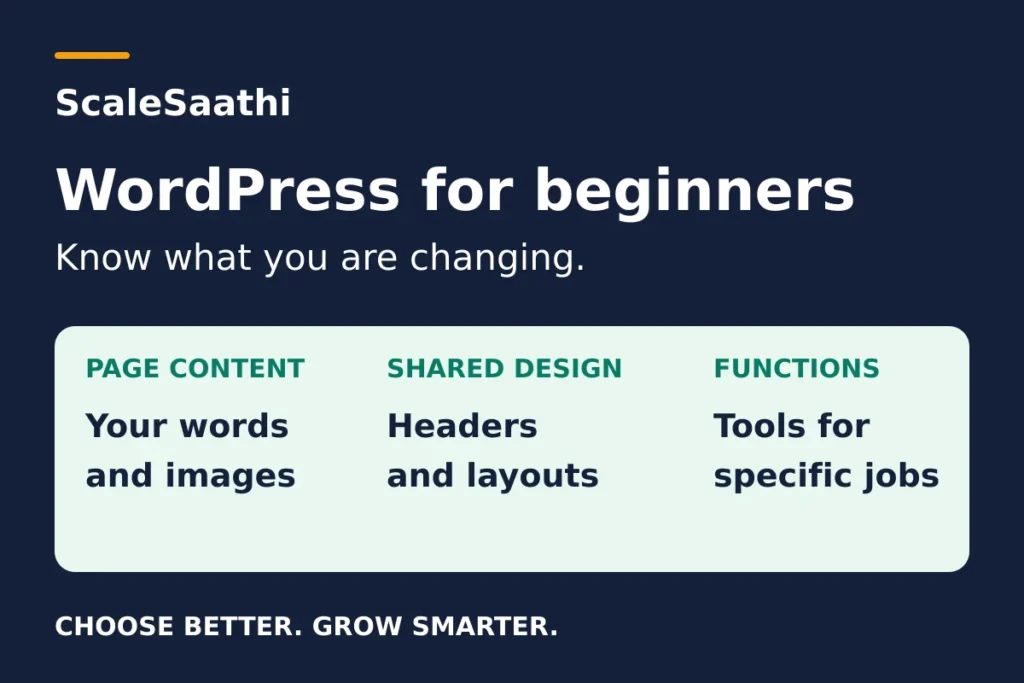
The important distinction is between content, shared design and extra functionality:
| Your task | Where to work |
|---|---|
| Services, About or Contact content | Pages for lasting information |
| A care guide or business update | Posts for individual articles |
| A shared header or page layout | The theme's Site Editor or other theme controls |
| A new form or booking function | Check existing tools, then Plugins |
Pages and posts can both use blocks: paragraphs, headings, images and other content elements. A theme supplies design and templates. A plugin adds or changes functionality. Installing a plugin does not automatically make it necessary for your website.

Why your Appearance menu may look different
With a block theme, Appearance → Editor opens the Site Editor. It can edit templates, shared headers, navigation and styles, as well as pages. A shared header change can appear across several pages. Read the save review carefully before accepting changes to several items. Site Editor documentation.
Classic themes commonly use Appearance → Menus, with design settings provided through their own controls or the Customizer. The absence of the Site Editor does not mean that WordPress is broken. Likewise, the ordinary block editor for a post can work without a block theme.
Before saving, ask: “Am I changing this page's words, or the layout used by other pages?” That question is more useful than trying to memorise every dashboard icon.
Build one useful page before decorating the site
Consider a fictional repair business in Kohima. Its owner needs customers to understand the services, see the area covered and make an enquiry. The first version could use Home, Services and Contact pages. A Blog page is optional; it creates another area the owner must maintain.
Start with Pages → Add New and call the page Services. In the block editor, add a short introduction, a Heading block for each main service and ordinary paragraphs answering the questions customers ask. Save it as a draft while it is unfinished. Block editor instructions.
The exercise is to supply useful information, not copy a showroom template. For this fictional business, a reader would need to know:
- which appliances or equipment the business actually repairs;
- which localities it serves and whether pickup is available;
- whether an inspection has a charge and when a quotation is given;
- how to request help, with realistic response hours.
Only publish those details when they are true for the real business. A starting price is useful if the inclusions and conditions are clear; an invented ₹ figure is worse than asking the reader to request a quotation.
Use a real photograph you have permission to publish if it explains the service. Add alt text describing useful visible information, such as “Repair technician replacing a ceiling-fan capacitor”, only if that is what the image shows. Do not add a town name or sales phrase to every image merely for SEO.
Choose descriptive button text such as Ask about a repair, and connect it to a working destination. If you use a form, submit a sample enquiry yourself and check that the intended person receives it. A success message on the screen is only one part of that check.
Preview the page on a narrow screen. Can someone find the service area and contact option without reading decorative filler? If the site uses Hindi or another Indian language, check the actual script, line breaks and buttons on a phone as well.
For a blog rather than a service site, keep the same page-editing skills but use Posts for the articles. Our guide to starting a blog in India handles topic choice and the first publishing plan.
Make Home and the menu point to the right places
Creating a page does not, by itself, guarantee that a visitor will find it. You need both the correct homepage setting and usable navigation.
Choose what appears at the front of the site
In the practice site, finish and publish Home, Services and Contact. If you want a posts listing, also publish a separate empty Blog page. Keep unfinished pages on a real business website as Drafts. Then open Settings → Reading, choose A static page, select Home as the homepage and Blog as the posts page if needed, and save.
Here, “static page” means a chosen WordPress page instead of the latest-posts list. It does not mean converting WordPress into a different type of website. The homepage and posts page must be different pages. Content typed into the assigned Blog page is not the normal way to write its posts listing; create the articles under Posts. Static homepage instructions.
Add existing pages to navigation
Block theme: go to Appearance → Editor, then find the Header under Patterns → Template Parts; labels can vary by theme and WordPress version. Open that header and select its Navigation block. Add your completed pages, arrange their order and save. Choose existing pages: creating a new page from within the navigation controls can publish an empty page. Navigation block guidance.
Classic theme: open Appearance → Menus, create or select the menu, add the published pages, set the theme's display location and save. A menu that has no assigned location may not appear where you expect it. Classic menu instructions.
For a hosted website, open a private browser window and follow Home → Services → Contact as a logged-out visitor. In Playground, preview the current practice site itself; opening the general Playground link elsewhere does not carry your edits with it. On a phone, also open and close the mobile menu. This is a visitor task to perform, not something a green SEO indicator can confirm.
Add plugins only after naming the missing job
Before installing anything, write the requirement in one sentence: “I need customers to send an enquiry with a photograph” is useful; “a tutorial says I need ten plugins” is not.
Check whether your host, theme or current plugins already provide that function. Review the proposed plugin's documentation, compatibility information and maintenance history. Install and activate it only when you understand its role. WordPress distinguishes deactivating a plugin from deleting it; check its instructions before removal because stored settings or data may be affected. Plugin management.
For a simple service site, assess forms, backups and search metadata as separate jobs. You may already have a solution for some of them. Our recommendation is to avoid overlapping tools that both try to manage the same caching, SEO or form workflow unless their documentation explicitly supports that arrangement.
Before a significant change, confirm how you would recover. A normal WordPress Tools → Export file is a content export, not a complete backup of the working installation. Full recovery typically needs the database and files, including uploads, plugins and themes. Keep a usable copy outside the installation and know the restore procedure. Content export and WordPress backups explain the difference.
If you do not want to manage updates and recovery yourself, use our managed WordPress hosting guide to decide what support to arrange. Paying for a service is useful when its stated responsibilities match the work you need covered.
Set up search information without writing for a score
A page's title should tell a visitor what it offers. If you use Rank Math, choose one primary phrase that genuinely matches the page, then review its title, description and content warnings individually. Its own documentation describes the recommendations as suggestions, with the reader's experience taking priority. Rank Math's explanation of its tests.
Illustrative example for the fictional Services page:
Focus keyword
appliance repair in Kohima
SEO title
Appliance Repair in Kohima: Services & Enquiries
New-page slug
appliance-repair-kohima
Meta description
Need appliance repair in Kohima? Check the equipment we repair, service areas and enquiry process before requesting a quotation.
Use the example only if that is the business's real service. A natural opening could explain the equipment covered and how local customers book an inspection. Do not repeat the entire keyword in every heading. Do not rename a working, established URL simply because a plugin prefers an exact match.
In Rank Math, review the saved focus phrase itself when a warning appears. A phrase such as “appliance repair Kohima” differs from the grammatical wording “appliance repair in Kohima”. Correct the targeting or the writing where appropriate; adding awkward repetitions is not a useful fix.
This is an editorial checklist, not a promise of Google rankings. A higher score cannot verify whether your claims are accurate, the form works or the service is available.
Before inviting customers, complete a visitor check
Save unfinished content as Draft. WordPress also has private and password-protected visibility options; choose the appropriate access control for the actual use case. Page and post settings.
The Discourage search engines from indexing this site checkbox is not privacy protection. It asks search engines not to index the site, but ordinary visitors can still access public pages. Check this setting when a site is ready for public search. Reading settings.
For an India-based operation, check the site title, monitored administration email and timezone under Settings → General. Select Kolkata for Indian Standard Time where that city option is available, then check the displayed local time before scheduling content. General settings.
Use this final acceptance check on the actual public-facing site:
- Find: a logged-out visitor reaches the intended Home page and can open Services and Contact from the menu.
- Understand: service descriptions, locations, prices where stated and response expectations are accurate; no sample text or empty pages remain.
- Act: the phone link, enquiry destination or booking process works on a phone; a sample message reaches its recipient.
- Read: headings, images, buttons and any regional-language text fit the screen; relevant images have descriptive alt text.
- Recover: you know where the current backup is and who can restore it. Required privacy information reflects the data the site actually collects.
If a shared layout changes unexpectedly, pause further edits and identify whether the change was to a page, template or header. If navigation is missing, check the relevant menu workflow. If the wrong content appears at the front, check Reading settings before rebuilding Home.
For the fictional repair business, the first version is ready when a customer can understand the service and send a working enquiry. That gives the owner a concrete stopping point—and a reason to postpone features that do not help that task.
Frequently asked questions
Can I learn WordPress without buying hosting?
Yes. WordPress Playground lets you practise in a browser. Save the project and export a ZIP to keep a separate copy. It is a practice environment; arranging a public business website is a separate task.
Do I need a paid page builder to make a basic WordPress page?
Start with the built-in block editor and a working theme. Our recommendation is to buy another editor only after identifying a layout or workflow requirement that the existing tools cannot meet.
Why can I see Appearance → Menus but not Appearance → Editor?
The Site Editor requires a block theme. A classic theme can use the Menus screen and other theme controls instead. Having the ordinary block editor for posts does not mean the active theme is a block theme.
Does a high Rank Math score mean my website is ready?
No. Review its relevant SEO suggestions, then check accurate content, working enquiries, navigation, mobile reading and recovery separately. The score is not a visitor test or a guarantee of search rankings.
Sources and further reading
- WordPress.com — WordPress.com and WordPress.org
- WordPress Playground — quick start, saving and exporting
- WordPress Playground — browser storage limitations
- WordPress — first steps, dashboard and login
- WordPress — block editor
- WordPress — Site Editor and shared design
- WordPress — create a static homepage
- WordPress — Navigation block
- WordPress — classic menu screen
- WordPress — plugin management
- WordPress — content export
- WordPress — files, database and backups
- Rank Math — content tests and score limitations
- WordPress — page and post visibility
- WordPress — Reading settings and search visibility
- WordPress — General settings