Before picking a WordPress migration plugin, I ask one question: what access do you have on the new server? If you only have the WordPress dashboard, an import inside WordPress such as All-in-One WP Migration is the realistic route. If you can reach the files and database, Duplicator Lite opens up. If neither, ask the receiving host to do it.
Which copying method fits your access? Start with All-in-One WP Migration if you can use the WordPress dashboard and the destination accepts your archive. Consider Duplicator Lite if you can manage the destination files and database. If neither fits, ask the receiving host about its migration service.
Moving a WordPress site with a plugin: the order that keeps a way back
- Choose by access. With dashboard access only, use All-in-One WP Migration (Export to File, Import from File). If you can manage the files and database, use Duplicator Lite’s installer and archive.
- Ignore the old “512 MB” rule. ServMask says the free plugin has no limit of its own; the destination server’s upload allowance decides.
- A 900 MB archive won’t fit a 128 MB allowance, however often you retry. Ask the host which limit applies and how it supports larger imports.
- Some buttons in tutorials are paid: server-side restore is in the Unlimited Extension, and Duplicator’s dashboard Import needs Pro Basic or higher.
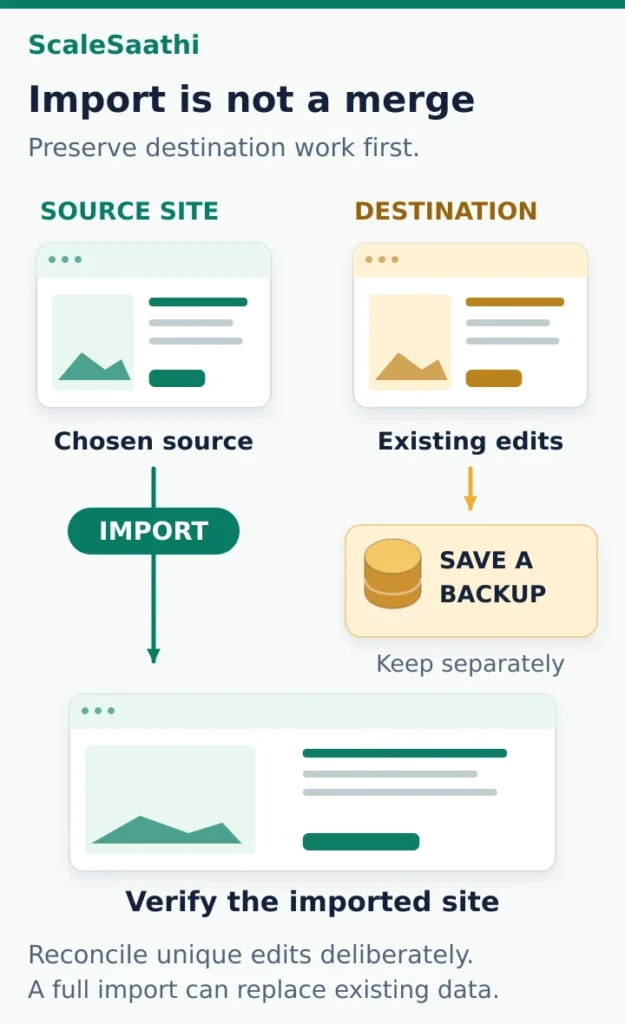
- An import overwrites the destination. Back up anything already built there, because a migration doesn’t merge two edited sites.
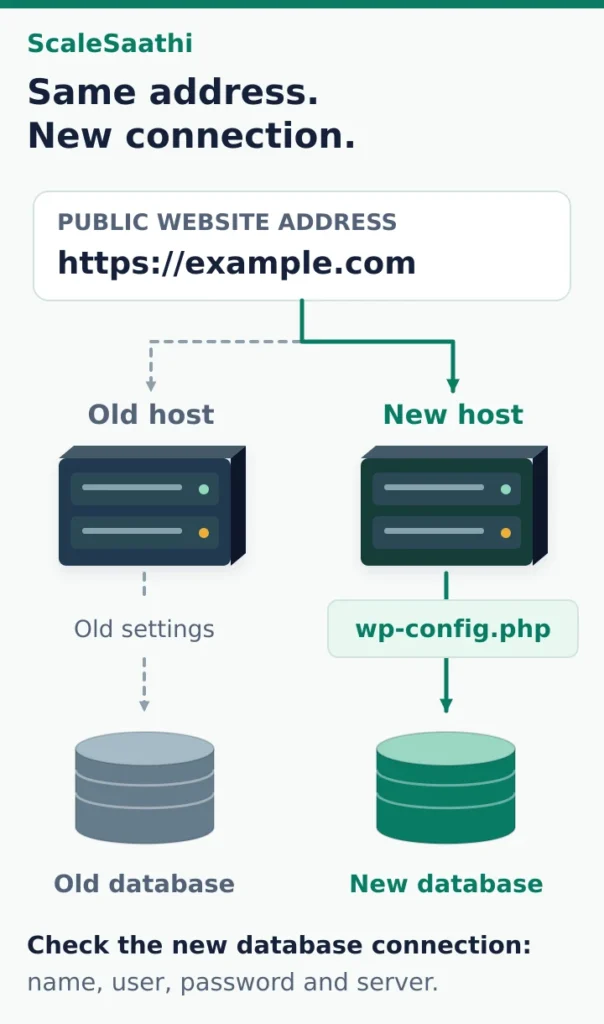
- Same domain, same WordPress URLs. Usually only the database credentials change.
- Never run a plain find-and-replace on an SQL dump, because it breaks serialized settings. Use the tool’s URL handling or WP-CLI search-replace with –dry-run.
- Test forms, logins, older images, checkout and redirects on the copy before you switch DNS, and keep the old host until everything passes.
- Ask the new host first: its free move may be enough. Hostinger’s, for example, excludes email, DNS records and cron jobs.
Disclosure: Some links on this page are affiliate links. If you buy through them, ScaleSaathi may earn a commission at no extra cost to you. This never affects our rankings or recommendations. Read our affiliate disclosure.
One trap: the old “512 MB” upload limit people quote. ServMask now says the free plugin has no limit of its own; the destination server decides. This page is for self-hosted, single-site WordPress and is based on official documentation, not our own test moves. Multisite, infected sites and shops that can’t pause orders need their own plan. For DNS, email and the switch-over, see our hosting migration checklist for DNS, email and rollback.
Which WordPress migration plugin fits your move?
Choose the destination workflow first. A plugin can be free while a particular import convenience is paid.
All-in-One WP Migration: an import inside WordPress
The documented file contains the database, media, themes and plugins. The receiving site needs WordPress and the plugin installed before you import it. This suits an owner who can work in the dashboard and whose receiving host can process the archive. Official plugin description.
The free route is Export → File, followed by Import → File. ServMask's current guide says the community plugin has no independent upload-size ceiling: the host/server must allow the file. Check the limit shown on the actual destination instead of relying on an old “512 MB” rule. ServMask user guide.
Do not assume that every button in an online tutorial belongs to the free workflow. ServMask lists server-side restore among the Unlimited Extension's features. Uploading an archive into a backups folder is not proof that a free Restore action will be available. Unlimited Extension features.
Duplicator Lite: an installer and archive
Duplicator's classic method uses a matched installer and archive in a prepared empty destination directory, with a destination database. WordPress need not already be installed there. This is useful when you have file-manager/SFTP access and someone who understands the database connection. Classic installation.
Its dashboard Import Backups method is a separate feature requiring Duplicator Pro Basic or higher. Do not buy Pro merely because one tutorial uses that screen; first decide whether the free classic method already meets your needs. Duplicator Pro import requirements.
Ask whether the receiving host can do the job
An included migration may remove the need to buy or operate a plugin. Confirm the site qualifies and who checks the result. For example, Hostinger documents eligible WordPress migrations but excludes services such as email, DNS records and hosting cron jobs from the website transfer. That is a specific scope, not an all-services move. Hostinger migration scope.
Our managed WordPress hosting guide can help you establish what the host handles and what still needs an owner. A paid tool is justified by a required feature or a supported workflow—not simply by the word “migration” on the checkout page.
Know what you are copying before you export
WordPress needs both its files and database to reproduce a typical working site. The files include themes, plugins and locally stored uploads; the database holds content and settings. Downloading a WordPress directory alone does not normally export the separate database. Keep a recoverable backup of both. WordPress backup guidance.
Tools → Export is different. It creates a WXR/XML content file. That can help move selected posts or pages into another WordPress setup, but it is not a full archive of installed theme/plugin code, physical media files and the complete database. “All content” in that screen does not mean every part of the website. WordPress Export documentation.
Before creating a migration archive, record the active theme, important plugins, content counts and a few pages that must work. Include an older uploaded image, a downloadable document and a form—not just the homepage. If WordPress terminology is unfamiliar, our WordPress beginner’s guide explains the main parts.
Also identify anything outside the local installation: offloaded media, an external mail service, scheduled server jobs, payment accounts or licence entitlements. A copied plugin setting does not prove that the connected service works from the new host. Treat these as checks, not assumed inclusions.
Prepare a destination you are willing to replace
Check the destination directory and database before starting an import. If somebody has already designed pages or collected enquiries there, preserve that work first. Migration is not a safe way to combine two independently edited websites.
Duplicator documents an overwrite mode, but warns that valuable destination data needs a backup. It also notes that destination-only files can remain. Consequently, “overwrite” should not be read as either “merge everything safely” or “remove every old file”. A new empty destination is easier to reason about. Duplicator overwrite behaviour.
ServMask likewise warns about replacing destination data during import. Read the confirmation against the actual site you are about to change. ServMask import warning.
Illustrative mistake: a designer creates a new contact page at the destination while the owner edits the old site's contact page. A full-site import does not decide which wording is better and combine the two. Save the destination work separately, choose the intended version and reapply or reconcile it deliberately.
Ask the host to check the PHP/database environment, available disk space and required extensions. The official WordPress requirements are a baseline; a particular theme or plugin can impose additional requirements. An archive that builds successfully on the old server does not establish compatibility with the new one.
Follow the file-import route without losing your recovery copy
The following path is for All-in-One WP Migration's basic file workflow. Screen wording can change; keep the official guide open beside the task.
- Prepare both ends. Keep a secure source backup, and back up any valuable destination work. Install and activate the official plugin on the source. Prepare WordPress and the plugin at the destination, then confirm which server you are editing.
- Export the source. Use Export → File. For a full move, check that advanced exclusions have not removed required database, media, theme or plugin content. Download the resulting
.wpressfile. - Check the receiving limit. Open Import at the destination and compare its displayed upload allowance with the archive size. Resolve a blocking limit before the agreed switch window.
- Import the file. Use Import → File. Check the destination again before accepting the replacement warning. Retain the source and your independent backup while the operation runs.
- Sign in and finish the plugin's instructions. The imported source username/password may replace the temporary destination login. Re-save permalink settings as directed, then test representative pages and actions.
The export/import choices, exclusions and login behaviour follow the ServMask workflow. These steps create a copy to verify; they do not establish that changing DNS or cancelling the old account is safe.
If the upload fails, identify the failing stage
Consider this fictional example: the .wpress export is 900 MB, while the destination shows a 128 MB upload allowance. The archive exceeds that receiving allowance. Repeating the same upload, or changing the file's extension, does not address the mismatch.
Ask the host which restriction applies. ServMask's troubleshooting distinguishes PHP upload/request limits, temporary storage, disk quota and permissions. A request rejected during upload is a different problem from a completed import whose pages do not work. Upload error guidance.
Ask for a supported adjustment or transfer method. A suitable paid extension may change the upload route, but the host still needs space to process and run the site. Do not delete required media or omit the database simply to make the export smaller. Review genuinely unnecessary caches or old backup copies only after preserving recovery material elsewhere.
We cannot independently verify whether your archive will complete on your hosting plan. The destination trial and its logs are the evidence needed before the public switch.
If you choose Duplicator's classic route instead
Create a backup and download its matching installer and archive. Upload both to the prepared destination, open the installer through the new environment, enter that destination's database details, review validation and complete the installation. Keep the pair together; do not combine files from different backups.
Check the selected database action carefully because it can remove existing tables. After successful verification, complete the installer cleanup and remove exposed installation/archive files from the server while retaining a secure backup elsewhere. Follow the classic installer instructions for the actual version.
A new host does not necessarily mean a new WordPress URL
If the public domain and paths remain the same, keep the intended WordPress addresses. New database credentials may still be necessary: the database name, user, password or server can differ at the destination. In a manual move, these connection values belong in wp-config.php; a migration installer may configure them as part of its workflow. WordPress migration guidance.
Use a supported preview method that reaches the new server. Do not casually change the live source's address to a temporary hostname just to see the copy. Agree the preview and HTTPS method with the host before making address changes.
If you deliberately used a temporary address, check for it in links, image URLs and the database before launch. A plain text replacement in an SQL dump can break serialized settings—stored values that include length information. Use the migration tool's supported URL handling or a WordPress-aware replacement tool.
For a developer, WP-CLI's search-replace handles serialized data and offers --dry-run to report changes without saving them. Confirm the correct installation and table scope, back up first and inspect the proposed changes. Do not perform an indiscriminate database-wide replacement. WP-CLI documentation.
Preserve WordPress GUID identifiers during ordinary URL replacement; they are not simply broken links to update. Keep a domain change or permalink redesign as a separate task with its own redirect plan. The WordPress migration handbook explains those additional URL concerns.
Accept the WordPress copy only after these checks
Start with the things your visitors and staff actually use. Keep a short written result for each check so that a partial success is visible.
| Check | What a useful pass looks like |
|---|---|
| Content and design | Expected posts/pages, menus, theme layout, older images and downloads appear at the intended addresses. |
| Access and editing | The right administrator can sign in, edit a test item and save it on the destination. |
| Forms and email | A controlled enquiry reaches the intended inbox; sending a form is not mistaken for receiving it. |
| Store or membership | A supported test exercises the relevant login, checkout or access flow without triggering duplicate real work. |
| URLs and search settings | Existing paths and redirects work; preview URLs and temporary index blocks are absent from the intended live copy. |
| Operations | Required jobs, licences, external services and a fresh destination backup have a verified owner and configuration. |
For WooCommerce, do not let a copied test site perform real customer work accidentally. WooCommerce's own update guidance recommends staging and notes that test environments can still send email or interact with live services unless configured appropriately. WooCommerce staging guidance.
If the homepage works but inner pages return 404, check the existing permalink structure and the receiving server's rewrite configuration. If a database connection error appears, check the destination credentials and permissions before attempting another full import. If an image is missing, establish whether its file was transferred or whether it still depends on the old server or external storage.
Once the WordPress copy passes, use the hosting migration plan linked above for the final data update and public switch. A shop that took orders after your first archive needs those changes accounted for. Keep the old service available until the complete move—not only the plugin's progress bar—has passed its acceptance checks.
Frequently asked questions
Can I move WordPress without a migration plugin?
Yes. A manual transfer copies the files and exports/imports the database, with the correct destination configuration. It requires suitable hosting access and verification. Ask the receiving host for help if those tasks are unfamiliar.
Can a full-site import combine two separately edited WordPress sites?
Do not treat it as an automatic merge. Preserve work from both sites, choose the intended source, and plan how unique content or business records will be reconciled. A normal replacement workflow can overwrite destination data.
Will a WordPress archive also move domain registration and email?
Do not assume so. Website files and database settings are separate from domain registration, DNS service and external mailbox history. Check those services individually as part of the wider hosting-move plan.
Sources and further reading
- All-in-One WP Migration — official plugin and file workflow
- ServMask — All-in-One WP Migration user guide
- ServMask — Unlimited Extension features
- Duplicator — classic installer for Lite and Pro
- Duplicator — Pro dashboard import requirements
- Hostinger — migration eligibility and scope
- WordPress — files and database backups
- WordPress — Tools Export and WXR files
- Duplicator — overwrite behaviour and destination data
- ServMask — import replacement warning
- WordPress — hosting requirements
- ServMask — upload errors and host restrictions
- WordPress — migration, URLs and database connections
- WP-CLI — serialization-aware search and replace
- WooCommerce — staging and connected services
Product names and logos are trademarks of their respective owners. They are shown only to identify the products compared in this guide, and their use does not imply endorsement by or affiliation with ScaleSaathi.