
Last updated 31 October 2026 · Prices seen 31 October 2026 on each company’s own pricing page · Sources
The practical answer
Let AI write the formula. Let Excel do the maths.
For most small businesses in India, the safest way to use ChatGPT for Excel is to describe your columns (not paste your customers’ data), ask for a formula, and test it on a few rows you can check by hand. Free ChatGPT is enough for that. If you want the AI to work inside your workbook, use OpenAI’s ChatGPT for Excel add-in or Microsoft’s Copilot in Excel, which needs a Microsoft 365 plan that includes it. Below are 25 tested prompts with Indian examples: GST, ledgers, stock, sales, payroll, EMI, data cleaning and summaries.
The spreadsheet jobs I hand to AI are rarely clever. A GSTR-2B download that needs matching to the purchase register, a sales export from the billing software with dates stored as text, a bank statement where every UPI narration looks different. What changed for me was learning to describe the sheet rather than paste it: column letters, headings, the row where data starts, and two made-up rows. The formula that comes back is usually right, and when it is wrong it is wrong in a way you can spot on five rows.
This guide follows that habit. It starts with which assistant to use, ChatGPT, Copilot in Excel, Gemini in Google Sheets or plain formulas, then what each one can and cannot do inside a workbook, what to keep out of it, and 25 prompts built on Indian GST, ledger, stock and payroll layouts.
What to remember
Before you press Enter on an AI formula
- Describe the columns and the row where data starts; never paste customer names, PAN, GSTIN or bank details to get a formula.
- Test every AI formula on five rows you can check by hand before you fill it down.
- Free ChatGPT or Gemini is enough for formulas. Pay only when you want the AI to work inside the workbook.
- Copilot in Excel needs an eligible Microsoft 365 plan, such as Premium at ₹1,999 a month, and opens in edit mode by default; use chat mode when you only want answers.
- OpenAI’s ChatGPT for Excel add-in does not yet handle Power Query, PivotTables, the Data Model, data validation, slicers or VBA macros.
- The COPILOT worksheet function stopped working on 14 September 2026; old results stay as values.
- For a report you repeat every month, use AI once to build the PivotTable or Power Query, then refresh it without AI.
Prices seen 31 October 2026 on each company’s own pricing page. ChatGPT’s rupee prices load only in the browser, so they are as reported on 25 October 2026.
Which tool to use: ChatGPT, Copilot, Gemini or plain formulas
You do not need a paid tool to get value. Pick based on where your data lives and whether you want the AI to touch the file.
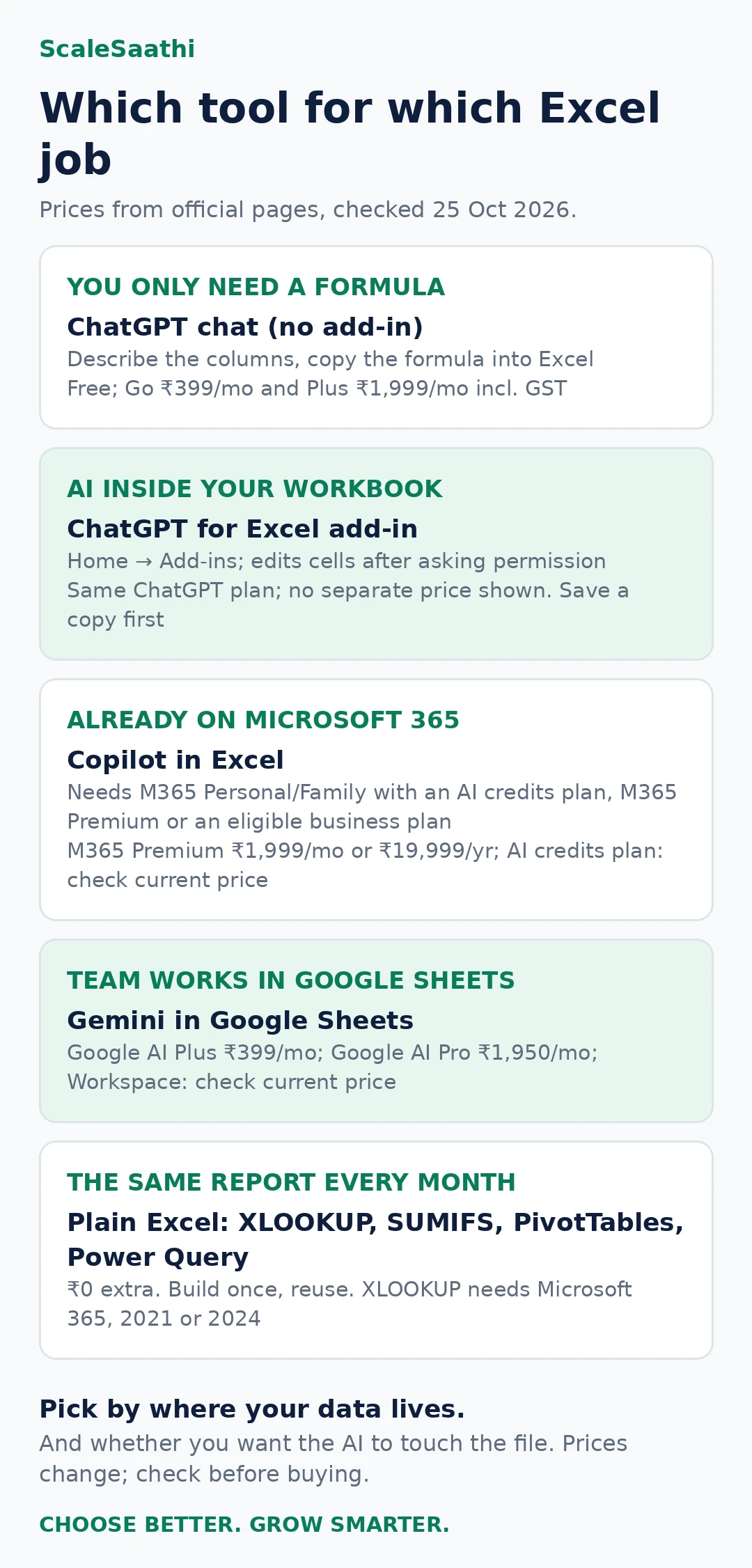
| Option | What it does | What you need | Price (official page, seen 31 Oct 2026) | Best for |
|---|---|---|---|---|
| ChatGPT chat (no add-in) | Writes and explains formulas, Power Query steps and macros from your description. Can analyse an uploaded .xlsx or .csv file using Python. | Any ChatGPT account | Free; Go ₹399/month and Plus ₹1,999/month, both including GST; Business ₹1,800 per user/month billed yearly, plus GST (as reported 25 Oct 2026) | Formulas without sharing data; one-off analysis of anonymised files |
| ChatGPT for Excel (OpenAI add-in) | Works in a panel inside Excel: builds sheets, explains and fixes formulas, edits cells after asking permission | Add from Home → Add-ins in Excel; sign in with OpenAI account. OpenAI lists Free, Go, Plus, Pro, Business and Enterprise users | Same ChatGPT plan; no separate price shown | Building or fixing a workbook in place |
| Copilot in Excel (Microsoft) | Edit, plan and chat modes inside Excel; formulas, charts, PivotTables, formatting. Can use GPT or Claude models | Microsoft 365 Personal or Family with an AI credits plan, Microsoft 365 Premium, or an eligible business plan with Copilot | Microsoft 365 Premium ₹1,999/month or ₹19,999/year on Microsoft’s India page; AI credits plan: check current price | Businesses already on Microsoft 365 that want AI inside the file |
| Gemini in Google Sheets | Creates tables, formulas, charts and pivot tables; applies formatting and filters | An eligible Google Workspace or Google AI plan | Google AI Plus ₹399/month; Google AI Pro ₹1,950/month; Workspace: check current price | Teams that already work in Google Sheets |
| Plain Excel formulas and tools | XLOOKUP, SUMIFS, PivotTables, Power Query, Flash Fill | Excel you already have (XLOOKUP needs Microsoft 365, 2021 or 2024) | ₹0 extra | Monthly reports you repeat: build once, reuse |
Prices are from official pages, as recorded in our ChatGPT, Gemini and Claude price guide on the same date. OpenAI’s page also says the Excel add-in does not yet support Power Query, PivotTables and the Data Model, data validation, named-range management, slicers or VBA macros, and that very large workbooks may give partial results.
Quick decision
- You only need a formula: free ChatGPT or Gemini. Describe the columns and copy the formula into Excel.
- You want a summary of a big file: remove personal details, then upload the file to ChatGPT, or use Copilot if your plan includes it.
- You want the AI to change the workbook: ChatGPT for Excel or Copilot in Excel. Save a copy first.
- The same report every month: ask the AI once to help you build a PivotTable or Power Query, then reuse it without AI.
Compare what these plans cost per user in rupees with the AI subscription cost calculator.
Copilot in Excel: edit, plan and chat modes, and the plan you need
Copilot has changed more than any other spreadsheet AI this year. Microsoft’s get-started page now describes three modes. Edit mode is the default and changes the workbook directly: it adds sheets, writes formulas across sheets, builds charts and PivotTables, and applies conditional formatting and data validation. Plan mode writes out the steps first so you can approve them. Chat mode only reads and answers, which is what I use on a client’s file until I trust the request.
| Plan | Copilot in Excel | Price on Microsoft’s India page | Note |
|---|---|---|---|
| Microsoft 365 Personal | Only with an AI credits plan added | ₹689/month or ₹6,899/year | Check the AI credits plan price at checkout |
| Microsoft 365 Family | Only with an AI credits plan added | ₹819/month or ₹8,199/year | Same as Personal |
| Microsoft 365 Premium | Included | ₹1,999/month or ₹19,999/year | Can switch between GPT and Claude models |
| Business plans | With an eligible Copilot licence | Check current business pricing | Admin must enable Anthropic before Claude models can be used |
Two habits help. Save a copy before edit mode touches anything, because a multi-step request can reshape a lot of cells at once. And give Copilot the same layout description you would give ChatGPT: the Copilot in Excel FAQ notes it was trained mainly on English sources and may do less well in other languages, so keep Hinglish headings out of the prompt.
ChatGPT for Excel and Google Sheets: what the add-in handles and its limits
OpenAI’s ChatGPT for Excel page lists the add-in for Free, Go, Plus and Pro users and for Business, Enterprise and Edu workspaces. The ChatGPT pricing page marks the Excel, Word, PowerPoint and Google Sheets extensions as limited on Free and Go, included on Plus and expanded on Pro. It explains what it is doing, links answers to the cells it used, and asks before changing anything.
| Works well | Not yet supported | Limit to plan around |
|---|---|---|
| Building a formatted sheet with formulas from a description | Power Query, PivotTables and the Data Model | Up to 20 attachments per message |
| Explaining a formula and fixing an error in a named cell | Data validation and the named ranges manager | 25 MB per file |
| Summarising trends across tabs | Slicers, timelines, Office Scripts and VBA macros | Very large workbooks may give partial results |
| Cleaning labels, formats and duplicates | External data connection settings | Free and Go: limited use |
In practice I use the add-in for one-off clean-ups and explanations, and plain formulas or Power Query for anything that has to run again next month. If the file holds customer details, the data safety rules below apply to the add-in exactly as they do to the chat window.
Data safety: what not to paste, and how to anonymise
Spreadsheets in a small business usually hold other people’s details. Keep these out of any personal AI account:
- Customer and supplier PAN, Aadhaar, bank account numbers, IFSC with names, UPI IDs and phone numbers
- GSTINs tied to named customers when you do not need them for the task
- Salary registers, attendance with employee names, PF or ESI numbers
- GST portal, income tax, bank or Tally logins and OTPs, on any plan
How to anonymise in two minutes: copy the sheet to a new file; replace names with codes (CUST_01, EMP_01) using Find and Replace or a lookup table that stays on your computer; delete PAN, Aadhaar, phone and bank columns you do not need; keep only the rows needed to show the pattern. For formula help, five made-up rows are enough.
Plan settings. OpenAI says ChatGPT Business and Enterprise data is not used to train models by default. On personal plans, turn off Settings → Data controls → “Improve the model for everyone”. Google says to avoid entering confidential information in Gemini if Keep Activity is on.
DPDP Act, 2023. Customer and employee names, phone numbers and bank details are personal data. Under the DPDP Rules, 2025, most business duties start around 13 May 2027. Good habits now (share less, use tools with clear data terms) will make that easier.
25 copy-ready ChatGPT prompts for Excel, with tested formulas
Each prompt describes columns, not real data. Replace the column letters with yours. The sample data and results below come from our own test sheet. Dates are DD-MM-YYYY and amounts are in rupees.
GST and invoices
Prompt 1: Split GST into CGST, SGST or IGST
Column A has the customer GSTIN, B the taxable value, C the GST rate (0.18). My state code is in K1 (07 for Delhi). Write formulas for CGST, SGST and IGST: same state means CGST + SGST, else IGST. Round to 2 decimals.
Sample data: GSTIN 07AAAAA0000A1Z5, ₹10,000 at 18%
Formula you should get:
CGST: =IF(LEFT(A2,2)=$K$1,ROUND(B2*C2/2,2),0)
SGST: same as CGST
IGST: =IF(LEFT(A2,2)<>$K$1,ROUND(B2*C2,2),0)
Tested result: Delhi buyer: CGST ₹900, SGST ₹900, IGST 0. Uttar Pradesh buyer (09…): IGST ₹1,800
Verify before using: Store K1 as text “07”, not the number 7. Place of supply rules can differ from the buyer’s state; check with your accountant.
Prompt 2: Taxable value from a GST-inclusive amount
Column A has amounts including GST and B the GST rate. Give me formulas for taxable value and GST amount, rounded to 2 decimals.
Sample data: ₹1,180 at 18%; ₹11,200 at 12%
Formula you should get:
Taxable: =ROUND(A2/(1+B2),2)
GST: =A2-C2
Tested result: ₹1,180 → ₹1,000 + ₹180; ₹11,200 → ₹10,000
Verify before using: Enter the rate as 0.18 or 18% (not 18).
Prompt 3: Check GSTIN format
Column A has GSTINs. Flag any that are not 15 characters, not in capitals, or do not start with two digits.
Sample data: 07AAAAA0000A1Z5, 07aaaaa0000a1z5, 7AAAAA0000A1Z5
Formula you should get:
=IF(AND(LEN(A2)=15,EXACT(A2,UPPER(A2)),ISNUMBER(--LEFT(A2,2))),"Format OK","Check")Tested result: Format OK, Check, Check
Verify before using: This checks the shape only. Confirm a GSTIN is real using Search Taxpayer on the GST portal.
Prompt 4: Item-wise (or HSN-wise) sales summary
Sales sheet: column D Item (or HSN), column G Taxable value, rows 2 to 100. In column I I have a list of items. Give me a SUMIFS formula for total taxable value per item.
Sample data: Pen: ₹1,000 + ₹3,000 + ₹800; Notebook: ₹2,000 + ₹800
Formula you should get:
=SUMIFS($G$2:$G$100,$D$2:$D$100,I2)Tested result: Pen ₹4,800; Notebook ₹2,800
Verify before using: Check the grand total of the summary equals the total of column G.
Ledger and reconciliation
Prompt 5: Normalise invoice numbers before matching
Invoice numbers are written differently in my books and the supplier’s data, like INV/26-27/045, 045 and 45. Write a formula that keeps only the number after the last slash, as a number.
Sample data: INV/26-27/045, 045, 45
Formula you should get:
=VALUE(TRIM(RIGHT(SUBSTITUTE(A2,"/",REPT(" ",50)),50)))Tested result: All three become 45
Verify before using: Gives #VALUE! if letters remain (S-12). Two suppliers can share a number, so always match on GSTIN and number together.
Prompt 6: Flag duplicate invoices
Column A is Invoice number, B Amount. Mark the second and later rows where both are repeated.
Sample data: INV-004 ₹3,000 appears twice
Formula you should get:
=IF(COUNTIFS($A$2:A2,A2,$B$2:B2,B2)>1,"Duplicate","")Tested result: Only the second INV-004 row shows Duplicate
Verify before using: Note the half-fixed range $A$2:A2. Do not let the AI change it to $A$2:$A$100, or the first row is flagged too.
Prompt 7: Bank entries not found in books
Bank sheet: A Date, B Amount. Books in H (Date) and I (Amount). Mark each bank row Found in books if the same amount appears in books within 3 days either side.
Sample data: Bank 10-05-2026 ₹25,000; books 08-05-2026 ₹25,000
Formula you should get:
=IF(COUNTIFS($I$2:$I$500,B2,$H$2:$H$500,">="&(A2-3),$H$2:$H$500,"<="&(A2+3))>0,"Found in books","Not in books")Tested result: ₹25,000 Found; ₹4,000 dated 12-05 with book date 01-05: Not in books
Verify before using: Two equal amounts in the same week can match the wrong entry. Review every Found row for large amounts.
Prompt 8: Running balance
Column B is Debit, C is Credit. Write a running balance formula in D.
Sample data: ₹50,000 in, ₹12,000 out, ₹3,000 in
Formula you should get:
=SUM($B$2:B2)-SUM($C$2:C2)Tested result: ₹50,000; ₹38,000; ₹41,000
Verify before using: Add the opening balance in the first row, or the running balance will start at zero.
Prompt 9: Party-wise balance
Column A is Party, B Debit, C Credit. Give me the balance for the party in E2.
Sample data: Sharma Traders: ₹10,000 debit, ₹4,000 credit
Formula you should get:
=SUMIFS($B$2:$B$500,$A$2:$A$500,E2)-SUMIFS($C$2:$C$500,$A$2:$A$500,E2)Tested result: ₹6,000
Verify before using: Extra spaces in party names (“Sharma Traders ”) give a wrong total; clean names first (prompt 23).
Stock and inventory
Prompt 10: Closing stock from stock movements
Movement sheet: A Item, B Type (In or Out), C Qty. Summary: E Item, F Opening stock. Write a closing stock formula in G.
Sample data: Pen: opening 50, In 500, Out 420
Formula you should get:
=F2+SUMIFS($C$2:$C$1000,$A$2:$A$1000,E2,$B$2:$B$1000,"In")-SUMIFS($C$2:$C$1000,$A$2:$A$1000,E2,$B$2:$B$1000,"Out")Tested result: Pen 130; Notebook 100
Verify before using: Do a physical count for a few fast-moving items each month and compare.
Prompt 11: Reorder alert
Column A is closing stock, B the reorder level. Show Reorder or OK.
Sample data: 130 vs 150; 400 vs 150
Formula you should get:
=IF(A2<=B2,"Reorder","OK")Tested result: Reorder; OK
Verify before using: Add conditional formatting so Reorder rows turn red.
Prompt 12: Slow-moving items
Sales sheet: A Date, D Item. In L1 I have the report date. For each item in column I, show days since its last sale.
Sample data: Report date 30-06-2026; last Pen sale 25-05-2026
Formula you should get:
=$L$1-MAXIFS($A$2:$A$100,$D$2:$D$100,I2)Tested result: Pen 36 days; Notebook 59 days
Verify before using: If the answer looks like a date (05-02-1900), change the cell format to Number. MAXIFS needs Excel 2019 or later.
Sales reports
Prompt 13: Month-wise sales
Sales: A Date (real dates), G Taxable. Column I has the first day of each month. Give me total sales per month with SUMIFS.
Sample data: April: ₹1,000 + ₹2,000; May: ₹800 + ₹3,000 + ₹800
Formula you should get:
=SUMIFS($G$2:$G$100,$A$2:$A$100,">="&I2,$A$2:$A$100,"<="&EOMONTH(I2,0))Tested result: April ₹3,000; May ₹4,600
Verify before using: If dates are stored as text this returns 0. Fix them first (prompt 22).
Prompt 14: Financial year label (April to March)
Column A has invoice dates. Write a formula that returns the Indian financial year, like 2026-27.
Sample data: 31-03-2026 and 01-04-2026
Formula you should get:
=IF(MONTH(A2)>=4,YEAR(A2)&"-"&RIGHT(YEAR(A2)+1,2),YEAR(A2)-1&"-"&RIGHT(YEAR(A2),2))Tested result: 2025-26; 2026-27
Verify before using: Test with 31 March and 1 April, which are the dates where mistakes show.
Prompt 15: Top customers by sales
Sales: C Customer, G Taxable, rows 2 to 6. Give me a list of unique customers sorted by total sales, highest first, in one formula.
Sample data: Rao & Sons ₹3,000; Sharma Traders ₹3,000; Gupta Stores ₹2,800
Formula you should get:
=SORTBY(UNIQUE(C2:C6),SUMIFS(G2:G6,C2:C6,UNIQUE(C2:C6)),-1)Tested result: Rao & Sons first
Verify before using: Needs Excel for Microsoft 365, 2021 or 2024. Leave empty cells below for the list to spill, or you get #SPILL!.
Prompt 16: Show amounts in lakh and crore style
Give me a custom number format for Indian digit grouping (12,34,567) that also works for crores.
Sample data: 1234567; 123456789; 45000
Formula you should get:
Custom format: [>=10000000]##\,##\,##\,##0;[>=100000]##\,##\,##0;##,##0
As a formula: =TEXT(A2,"[>=10000000]##\,##\,##\,##0;[>=100000]##\,##\,##0;##,##0")
Tested result: 12,34,567; 12,34,56,789; 45,000
Verify before using: This format is for positive whole numbers. TEXT() returns text, so do not use the result in further sums.
Payroll and attendance
Prompt 17: Count days present
Attendance row: P present, A absent, H half day, L paid leave in B2:G2. Give me days present and paid days.
Sample data: P, P, A, H, P, L
Formula you should get:
Present: =COUNTIF(B2:G2,"P")+0.5*COUNTIF(B2:G2,"H")
Paid days: =COUNTIF(B2:G2,"P")+COUNTIF(B2:G2,"L")+0.5*COUNTIF(B2:G2,"H")
Tested result: Present 3.5; paid days 4.5
Verify before using: Use a dropdown list for the marks so nobody types “p” or “Pr”.
Prompt 18: Pro-rata salary
A2 monthly salary, B2 any date in the salary month, C2 paid days. Pay = salary ÷ days in month × paid days, rounded to the rupee.
Sample data: ₹24,000, June 2026 (30 days), 26.5 paid days
Formula you should get:
=ROUND(A2/DAY(EOMONTH(B2,0))*C2,0)Tested result: ₹21,200
Verify before using: Some businesses divide by 26 or by working days. Follow your own policy and your appointment letters.
Prompt 19: Working days excluding Sundays and holidays
A2 start date, B2 end date, holiday list in E2:E3. Count working days when only Sunday is the weekly off.
Sample data: 1 to 31 October 2026; holidays 02-10 and 20-10
Formula you should get:
=NETWORKDAYS.INTL(A2,B2,11,E2:E3)Tested result: 25 days
Verify before using: The 11 means Sunday-only weekly off. Ask the AI for the right code if you also close on Saturdays (code 1).
Cash flow and EMI
Prompt 20: EMI, interest and principal
Loan ₹5,00,000 in A2, yearly rate 12% in B2, 36 months in C2. Give me EMI and the interest and principal in month 1.
Sample data: ₹5,00,000, 12%, 36 months
Formula you should get:
EMI: =PMT(B2/12,C2,-A2)
Interest, month 1: =IPMT(B2/12,1,C2,-A2)
Principal, month 1: =PPMT(B2/12,1,C2,-A2)
Tested result: EMI ₹16,607.15; interest ₹5,000; principal ₹11,607.15
Verify before using: Lenders may round differently or charge fees; compare with your loan sanction letter.
Prompt 21: Simple monthly cash flow
A2 opening cash, B2 expected receipts, C2 expected payments. Give closing cash and carry it to next month.
Sample data: ₹2,00,000 + ₹3,50,000 − ₹4,10,000
Formula you should get:
=A2+B2-C2Tested result: ₹1,40,000 (next month’s opening: =D2)
Verify before using: Put GST, TDS and EMI payment dates in the payments column so they do not surprise you.
Prompt 22: Receivables ageing buckets
Column A has invoice due dates and F1 the report date. Put each invoice in Not due, 0-30, 31-60, 61-90 or 90+ days overdue.
Sample data: Report date 25-10-2026; due 30-10-2026, 10-09-2026, 01-06-2026
Formula you should get:
=IFS($F$1-A2<=0,"Not due",$F$1-A2<=30,"0-30",$F$1-A2<=60,"31-60",$F$1-A2<=90,"61-90",TRUE,"90+")Tested result: Not due; 31-60; 90+
Verify before using: Use a fixed date in F1, not TODAY(), so the report does not change when reopened. IFS needs Excel 2019 or later.
Data cleaning
Prompt 23: Turn text dates into real dates
Column A has dates as text in DD-MM-YYYY or DD.MM.YYYY. Convert them into real Excel dates.
Sample data: 05-10-2026; 05.10.2026
Formula you should get:
=DATE(RIGHT(A2,4),MID(A2,4,2),LEFT(A2,2))Tested result: Both become 5 October 2026
Verify before using: Works only when day and month always have two digits. Format the result as DD-MM-YYYY. Text to Columns (choose DMY) is another way.
Prompt 24: Clean names and phone numbers
A2 has a customer name with extra spaces and mixed capitals; B2 a phone number like +91 98765-43210. Clean both.
Sample data: “ ramesh KUMAR ”; +91 98765-43210
Formula you should get:
Name: =PROPER(TRIM(CLEAN(A2)))
Phone: =RIGHT(SUBSTITUTE(SUBSTITUTE(SUBSTITUTE(B2," ",""),"-",""),"+",""),10)
Tested result: Ramesh Kumar; 9876543210
Verify before using: PROPER changes “ABC Traders” to “Abc Traders”. Check business names by eye.
Summaries and dashboards
Prompt 25: Month × item sales grid
Sales: A Date, D Item, G Taxable. Items are in I2 down and the first day of each month in J1 across. One formula I can copy across and down.
Sample data: Pen in April and May; Notebook in May
Formula you should get:
=SUMIFS($G$2:$G$100,$D$2:$D$100,$I2,$A$2:$A$100,">="&J$1,$A$2:$A$100,"<="&EOMONTH(J$1,0))Tested result: Pen: April ₹1,000, May ₹3,800; Notebook May ₹800
Verify before using: Check that row and column totals match a PivotTable of the same data. For a dashboard, ask: “Give me step-by-step instructions to build a PivotTable and chart of this grid, with a slicer for Item.”
How to ask so the formula works the first time
- Give your Excel version: “Excel 2019 on Windows” or “Microsoft 365”.
- Give exact columns and rows: “A is Date, G is Taxable value, data in rows 2 to 500, headers in row 1.”
- Say how the data is stored: are dates real dates or text? Is GST rate 18 or 0.18?
- Ask for an explanation and one test case: “Explain each part and tell me what the result should be for row 2.”
- Paste errors back: “I get #N/A in row 7, where the value is …” works better than “it doesn’t work”.
For other business tasks, such as payment reminders or product descriptions, build a prompt with the free AI prompt generator.
Common errors in AI-written formulas
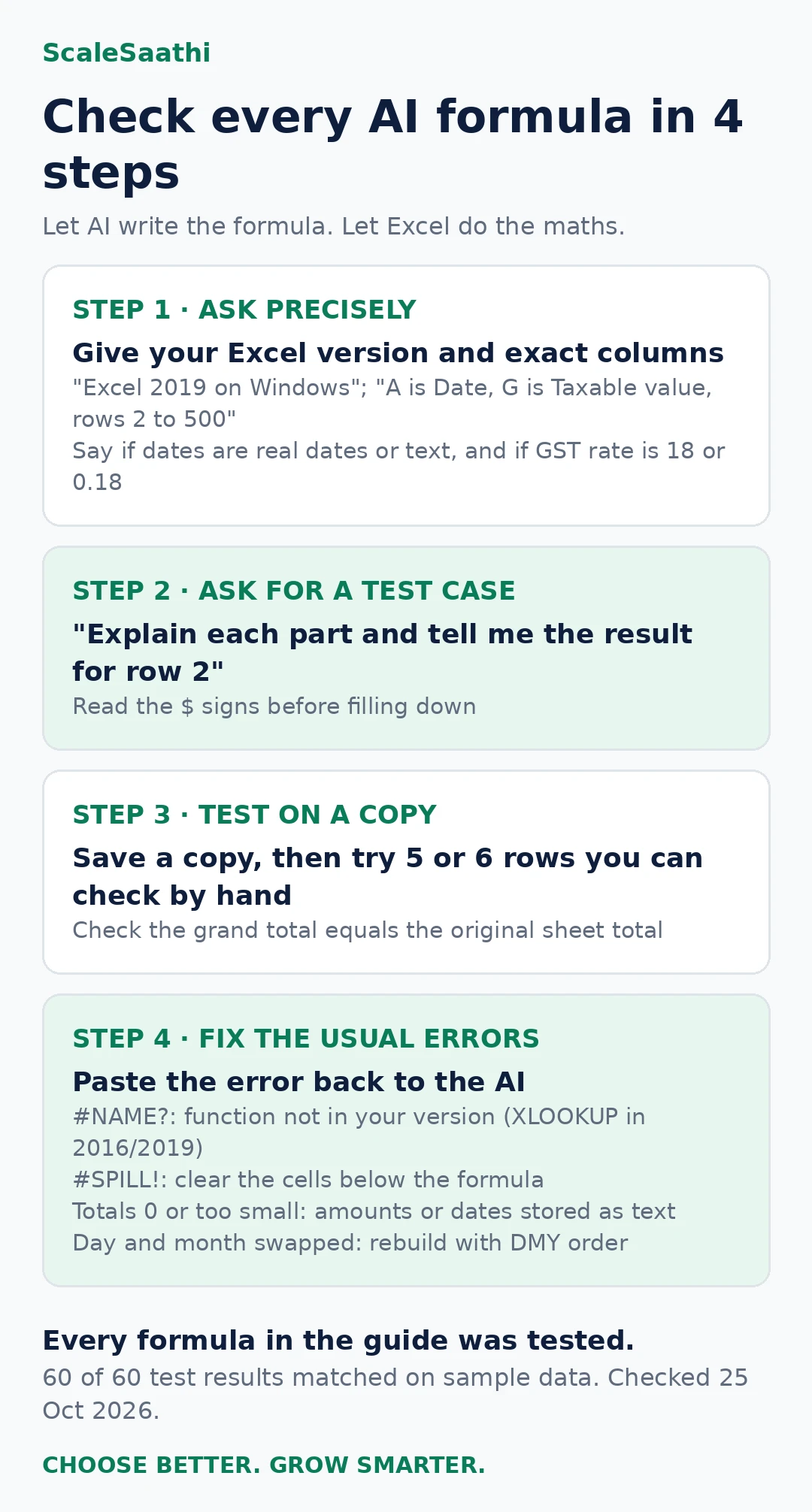
| What you see | Usual reason | Fix |
|---|---|---|
| #NAME? | Function not in your Excel version (XLOOKUP in Excel 2016 or 2019), a spelling slip, or an invented function | Tell the AI your version and ask it to use only built-in functions available there |
| Formula rejected as an error | Your Excel uses semicolons between arguments (common when Windows is set to a European region) | Replace commas with semicolons, or ask: “Use semicolons as separators” |
| Totals are 0 or too small | Dates or amounts stored as text; ranges stop at row 100 but data goes to row 900 | Convert text to numbers or dates; ask for whole-column or table references |
| Dates look like 05-02-1900 | The result is a number of days but the cell is formatted as a date | Change the cell format to Number |
| Day and month swapped | File opened with MM-DD-YYYY settings; 05-10-2026 read as 10 May | Rebuild with DATE(RIGHT,MID,LEFT) or Text to Columns with DMY |
| #SPILL! | A dynamic-array formula (UNIQUE, SORTBY, FILTER) needs empty cells below | Clear the cells under the formula |
| Wrong rows counted | AI changed $A$2:A2 into a fixed range, or left out the $ signs so ranges move when copied | Read the $ signs before filling down |
Three step-by-step workflows
1. Clean a messy sales sheet
- Save a copy of the file. Work on the copy.
- Remove blank rows and repeated header rows (filter on the header text, delete those rows).
- Fix dates with prompt 22 and check that 31-03 and 01-04 dates sit in the right financial year (prompt 14).
- Clean customer names with prompt 23. Use Flash Fill (Ctrl+E) when you need a pattern, such as first names only.
- Flag duplicates with prompt 6 and review them by hand; do not delete blindly.
- Convert the range to a table (Ctrl+T) so formulas and PivotTables grow with new rows.
- Build the month-wise and item-wise totals (prompts 13 and 25) and check the grand total equals the original sheet total.
2. Match GSTR-2B with your purchase register using XLOOKUP
GSTR-2B is the input tax credit statement on the GST portal, built from what your suppliers filed. The portal says it is generated on the 14th of the following month for monthly filers.
- Download GSTR-2B as Excel from the portal. Paste the B2B invoice rows into one sheet: A Supplier GSTIN, B Invoice no., C Taxable value.
- Export your purchase register into the same sheet: H GSTIN, I Invoice no., J Taxable value.
- Build a match key on both sides (D for 2B, K for books):
=UPPER(TRIM(A2))&"|"&UPPER(TRIM(B2))
=UPPER(TRIM(H2))&"|"&UPPER(TRIM(I2))- Look up the 2B value for each book entry (L) and give a status (M):
=XLOOKUP(K2,$D$2:$D$1000,$C$2:$C$1000,"Missing in 2B")
=IF(L2="Missing in 2B","Missing in 2B",IF(ABS(L2-J2)<=10,"Matched","Value difference"))
In our test, a book entry with a lower-case GSTIN and a trailing space still matched (₹10,000, Matched), a ₹5,050 entry against ₹5,000 in 2B showed Value difference, and an invoice not in 2B showed Missing in 2B. If invoice numbers are written differently, use prompt 5 before building the key. On Excel 2016 or 2019 ask for the same thing with INDEX and MATCH.
- Do the reverse check too: 2B invoices not in your books (
=IF(COUNTIF($K$2:$K$1000,D2)=0,"Missing in books","In books")). - Ask suppliers to correct missing invoices, take action on the portal and only then prepare GSTR-3B. The ₹10 tolerance is our example; choose your own.
3. Build a receivables ageing report
- Export outstanding invoices: Customer, Invoice no., Due date, Balance.
- Put the report date in F1 (for example 25-10-2026).
- Add the bucket column with prompt 21.
- Total by bucket:
=SUMIFS(D:D,E:E,"31-60"), where D is Balance and E the bucket. Or insert a PivotTable with Customer in rows and Bucket in columns. - Ask ChatGPT, using codes instead of names: “Write a polite payment reminder for an invoice 45 days overdue, under 80 words.”
Google Sheets: Gemini side panel and the AI function
If your team keeps the sales or expense sheet in Google Sheets, there are two separate tools. The Gemini side panel, per Google’s Gemini in Sheets help page, builds tables, formulas, charts and pivot tables, and works best on native Sheets files, so save an .xlsx as Google Sheets first. The AI function is different: you type =AI() or =Gemini() in a cell and it generates, summarises or categorises text row by row. Both need an eligible Google Workspace or Google AI plan; Google AI Plus is ₹399 a month and Google AI Pro ₹1,950 a month on Google’s India plans page.
| Job | Example | Use it? |
|---|---|---|
| Tag expense narrations into heads | =AI(“Classify as Rent, Fuel, Bank charges, Salary or Other”, B2) | Yes, then review a sample |
| Short summary of customer feedback | =AI(“Summarise in 10 words”, C2) | Yes |
| Calculating GST or totals | =AI(“Add 18% GST to”, D2) | No: use =D2*1.18 or SUM |
| Looking up a party’s GSTIN status | Asking it to search the web for a GSTIN | No: check on the GST portal |
The rule I follow: AI for words, formulas for numbers. An AI result can change when you refresh it; a formula gives the same answer every time.
Python in Excel: when it is worth trying
Microsoft’s Python in Excel page says you type Python into a cell with =PY or Formulas → Insert Python, the code runs in the Microsoft cloud, and results come back to the sheet. It needs a qualifying Microsoft 365 subscription and internet access, and works in Excel for Windows, Mac and the web but not on iPad, iPhone or Android. A paid add-on gives more compute.
For most small business sheets, SUMIFS and a PivotTable are faster to check. Python earns its place when you want a chart a formula cannot draw easily, a quick outlier check on a year of sales, or to combine several messy exports. Ask ChatGPT or Copilot to write the Python, but tell it the table name and columns, and read what it plans to do before you run it. Because the code runs in Microsoft’s cloud, the same data rules apply as for any AI tool.
Macros and VBA: what to ask the AI, and what to check
Chat assistants write VBA well enough for small jobs: splitting a sheet into one file per branch, printing every invoice in a range to PDF, or removing blank rows. OpenAI’s add-in cannot run or edit macros, so this is chat work: copy the code into the VBA editor yourself.
- Ask for comments on every line so you can see what it does before you run it.
- Run it on a copy of the file. A macro cannot be undone with Ctrl+Z.
- Look for delete, save, kill or send. Anything that deletes sheets, overwrites files or sends email needs a second read.
- Never run macro code from a file someone else sent unless you know where it came from.
- Prefer Power Query for monthly clean-ups; it is easier to check and to hand over to someone else.
Excel features to try before you pay for AI
| Feature | What it does | Available in |
|---|---|---|
| XLOOKUP | Looks up a value in any direction, with a “not found” message | Microsoft 365, Excel 2021, 2024, web and mobile; not in Excel 2016 or 2019 |
| SUMIFS, COUNTIFS | Totals and counts with several conditions | All current Excel versions |
| UNIQUE, SORTBY, FILTER | Lists that update themselves (dynamic arrays) | Microsoft 365, Excel 2021 and 2024 |
| PivotTables | Summaries by month, item or customer without formulas | All desktop versions and Excel for the web |
| Power Query (Get & Transform) | Combine and clean monthly files, repeatable with one Refresh | Built into Excel for Microsoft 365 and Excel 2016 and later on Windows (check Data → Get Data on older or Mac versions) |
| Flash Fill (Ctrl+E) | Fills a pattern after you type one or two examples | Microsoft 365, Excel 2016 and later |
Choose the right assistant
Not sure which AI plan you need?
Our free AI tool finder suggests tools by task and budget, with prices in rupees. For spreadsheet-heavy work, our ChatGPT vs Gemini comparison explains why ChatGPT is usually the better fit for Excel work, and what each costs in rupees. Wondering whether Perplexity could do the same job? Our Perplexity vs ChatGPT comparison explains which jobs suit which tool.
Related guides
- AI for accountants and CAs in India: Tally, GST and Excel
- ChatGPT, Gemini and Claude price in India
- How to choose AI tools for a small business
- Accounting software for small businesses in India
- Ledger format in Excel
- Stock register format
- Cash book format
- GST invoice format
- GST calculator
- Bank reconciliation statement format
- Trial balance format
- Microsoft 365 vs Google Workspace in India
- Profit and loss account format
Frequently asked questions
Can ChatGPT write Excel formulas?
Yes. Describe your columns, the row where data starts and what you want, and ChatGPT will usually give a working formula with an explanation. It can still pick the wrong range or a function your Excel version does not have, so test the formula on five or six rows you can check by hand before filling it down.
Is there an official ChatGPT add-in for Excel?
Yes. OpenAI offers ChatGPT for Excel and ChatGPT for Google Sheets. You add it from Home, then Add-ins, in Excel and sign in with your OpenAI account. OpenAI’s page says it can build sheets, explain and fix formulas and edit the workbook after asking permission, but it does not yet support Power Query, PivotTables, data validation or VBA macros.
What is the difference between ChatGPT and Copilot in Excel?
Copilot is Microsoft’s assistant built into Excel. It needs a Microsoft 365 plan that includes it, such as Microsoft 365 Premium or a business plan with Copilot. ChatGPT works in its own app or through OpenAI’s Excel add-in. If you only need formulas, a chat assistant is enough; if you want the assistant to edit the workbook directly, Copilot or the add-in fits better.
Is the COPILOT function still available in Excel?
No. Microsoft’s support page says that from 14 September 2026 the COPILOT function is no longer available. Results already calculated stay in your workbook as values. Microsoft points users to the Copilot pane in Excel instead.
Which Excel version do I need for XLOOKUP?
XLOOKUP works in Excel for Microsoft 365, Excel 2021 and Excel 2024, Excel for the web and the mobile apps. Microsoft says it is not available in Excel 2016 or Excel 2019. On older versions, ask the AI for an INDEX and MATCH formula instead.
Is it safe to upload my sales or GST data to ChatGPT?
Remove what identifies people first. Do not paste customer PAN, Aadhaar, bank account numbers, phone numbers or salary details into a personal account. Replace names and GSTINs with codes such as CUST_01. Business plans of ChatGPT do not train on your data by default; on personal plans, turn off “Improve the model for everyone” in Data controls.
Why does the formula from ChatGPT show #NAME? or a syntax error?
Usually one of three things: the function does not exist in your Excel version, the AI invented a function, or your Excel uses semicolons instead of commas between arguments. Tell the AI your exact Excel version and paste the error back; ask it to use only functions available in that version.
Can ChatGPT convert lakh and crore formatting in Excel?
Yes. Ask for a custom number format for Indian digit grouping. The format in this guide shows 12,34,567 for 1234567 and 12,34,56,789 for 123456789. You can also change Windows regional settings to English (India), which makes Excel group digits the Indian way in many files.
Can AI reconcile GSTR-2B with my purchase register?
It can write the formulas. Download GSTR-2B from the GST portal in Excel, put your purchase register next to it, and use the match key and XLOOKUP steps in this guide. The AI does not decide your input tax credit. Review each mismatch and take action on the portal before filing GSTR-3B.
Can I use Gemini in Google Sheets instead?
Yes, if you have an eligible Google Workspace or Google AI plan. Google says Gemini in Sheets can create tables, formulas, charts and pivot tables and apply formatting. It works best on native Google Sheets files, so save an Excel file as Google Sheets first.
How do I get Copilot in Excel?
You need an eligible plan: Microsoft 365 Personal or Family with an AI credits plan, Microsoft 365 Premium, or a business plan with an eligible Copilot licence. On Microsoft’s India page, Premium is ₹1,999 a month or ₹19,999 a year. Once it is on, select the Copilot icon in the lower-right corner of Excel.
Is ChatGPT for Excel free?
OpenAI lists the add-in for Free and Go users as well as paid plans, but ChatGPT’s pricing page marks the Excel and Sheets extensions as limited on Free and Go, included on Plus and expanded on Pro. For writing formulas in the chat window, the free plan is enough.
Can ChatGPT write VBA macros for Excel?
Yes, for small jobs such as splitting a sheet by branch or removing blank rows. Ask for comments on every line, run the code on a copy of the file, and check anything that deletes, saves or sends. OpenAI’s Excel add-in does not run or edit macros, so paste the code into the VBA editor yourself.
What is the AI function in Google Sheets?
It lets you type =AI() or =Gemini() in a cell to generate, summarise or categorise text using data in the sheet. It needs an eligible Google Workspace or Google AI plan. Use it for words, such as tagging expense narrations, and normal formulas for numbers.
Do I need to know Python to use Python in Excel?
Not much. You can ask ChatGPT or Copilot to write the code if you give the table name and columns, then read what it plans to do before running it. Python in Excel needs a qualifying Microsoft 365 subscription and internet access, as the code runs in Microsoft’s cloud.
How large a file can I give ChatGPT for Excel?
OpenAI’s page lists up to 20 attachments per message and 25 MB per file, and says very large workbooks may give partial results. For big exports, filter to the rows and columns you need, or ask for a formula instead of uploading the file.
Sources
All pages seen 31 October 2026, except where a line above says otherwise. Features and prices change; confirm on the official page before buying or relying on them.
- OpenAI: ChatGPT for Excel and Google Sheets
- OpenAI Help: Data analysis with ChatGPT
- OpenAI Help: Data controls in ChatGPT
- OpenAI: ChatGPT pricing
- Microsoft: Frequently asked questions about Copilot in Excel
- Microsoft: COPILOT function (retired 14 September 2026)
- Microsoft 365 plans and prices (India)
- Microsoft: XLOOKUP function
- Microsoft: Using Flash Fill in Excel
- Google: Collaborate with Gemini in Google Sheets
- Google: Gemini subscriptions (India)
- Microsoft: Get started with Copilot in Excel
- Microsoft: Introduction to Python in Excel
- Google: Use the AI function in Google Sheets
- Google: Gemini Apps privacy hub
- GST portal: GSTR-2B FAQ
- MeitY: Digital Personal Data Protection Rules, 2025
This guide is general information, not tax or legal advice. Check formulas on your own data and confirm GST positions with a qualified professional.